How to Get an Image URL (Turn Any Picture Into a Link)
By Editorial Team · May 4, 2026 · 9 min read · Last updated Oct 4, 2026
To get an image URL, upload the picture to an image host such as YourImageShare and copy the direct link it gives you back. The whole process takes about five seconds, needs no account, and works the same on a computer, an iPhone, or an Android phone. The link you copy is a normal web address ending in .jpg, .png, .webp, or .gif that you can paste into a website, an email, a forum post, or a chat message.
This guide covers every version of the question - how to get a picture URL, how to turn a photo into a link, how to make an image into a clickable link, and how to grab the URL of an image that is already on someone else's site. The steps are the same whatever you call it.
Quick answer:
- Open the image URL generator (or the YourImageShare homepage).
- Drag your picture in, or tap to pick one from your camera roll.
- When the upload finishes, copy the direct link.
- Paste that URL anywhere you need it.
How to Get an Image URL (Step by Step)
Follow these four steps to turn any picture on your device into a shareable link:
Step 1: Open YourImageShare
Go to YourImageShare.com, or the dedicated image URL generator. Both work in any desktop or mobile browser - there is nothing to install and no account to create.
Step 2: Upload your image
Click Upload and choose a file, drag and drop it onto the page, or paste it straight from your clipboard with Ctrl+V. Supported formats include JPG, PNG, GIF, WebP, AVIF, BMP, TIFF, and HEIC, up to 200MB per file.
Step 3: Copy the link you need
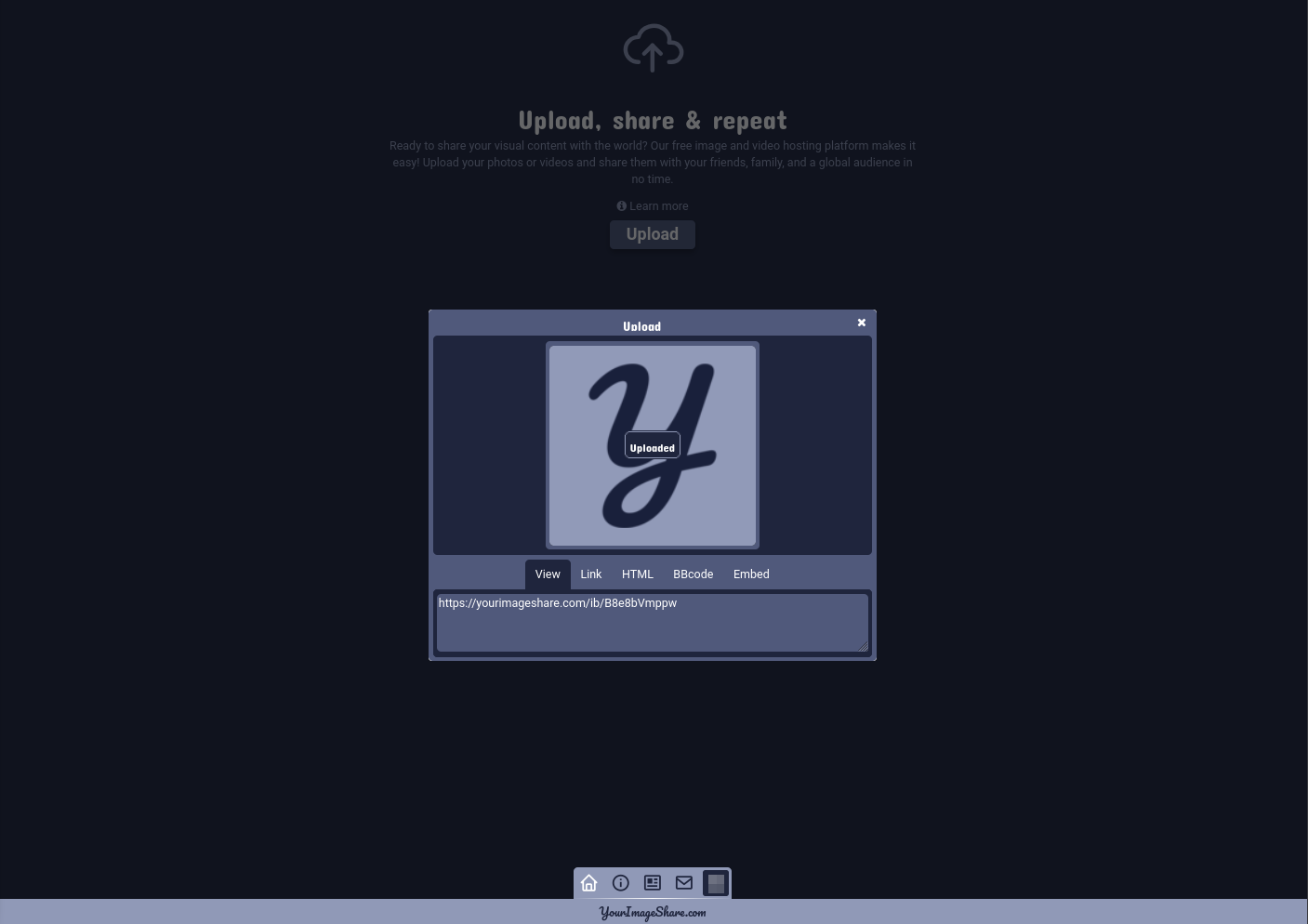
The moment the upload finishes you get four things: a direct image URL (ends in a file extension, for embedding in code), a viewer link (a page showing the image with a title, description, and comments), an HTML embed tag, and a BBCode link for forums. For most uses - embedding, hotlinking, sharing in chat - you want the direct image URL.
Step 4: Paste it anywhere
The URL now lives on your clipboard. Paste it into a website's <img> tag, an email, a forum reply, a Discord message, a marketplace listing, or a support ticket. The same link works everywhere and does not expire.
What Is an Image URL?
An image URL is a web address that points to an image file stored on a server. Instead of attaching the file, you share the address, and anything that can open a link - a browser, a website, an email client - can display the image. A photo URL, a picture URL, and an image URL all mean the same thing.
There are two kinds, and picking the wrong one is what usually breaks things:
- Direct image URL - ends in
.jpg,.png,.webp, or.gifand opens the raw image file with nothing around it. Use this for<img>tags, CSS backgrounds, email templates, and forum BBCode. - Page (viewer) URL - opens a web page that contains the image, along with a title, description, and share buttons. Use this when you want to share the image with context.
An example direct URL looks like https://yourimageshare.com/ib/aB3xY9qRz1.webp; opening it shows only the image.
How to Get an Image URL on iPhone or Android
The mobile process is the same three steps - open the site, upload, copy the link - with a couple of phone-specific details:
- iPhone: open YourImageShare in Safari or Chrome, tap the upload area, and choose Photo Library or Take Photo. HEIC photos straight from the camera are accepted, so there is no need to convert first. When the link appears, press and hold it and tap Copy.
- Android: open the site in Chrome, tap upload, and pick a photo from Photos, Files, or the camera. Long-press the finished link and choose Copy, then paste it into any app.
Mobile uploads use the same servers as desktop, so there is no loss of quality and no missing link types just because the file came from a phone.
How to Get an Image URL From a File on Your Computer
A file sitting on your desktop or in a folder has no URL yet - a URL only exists once the file is hosted somewhere online. To get one, upload the file: drag the .jpg or .png from your file manager straight onto the image URL generator, wait for it to finish, and copy the direct link. That link is now the image's permanent URL, and the original file on your computer is untouched.
How to Get the Direct Link of an Image on Someone Else's Website
Sometimes the picture already exists on a web page and you need the direct link to that image, not a link to the page it sits on.
On desktop
Right-click the image and choose Open image in new tab (Chrome, Edge, and Firefox all have this). When the image opens on its own, the address bar shows its direct URL - if it ends in a file extension with no page around it, that is the link you want. If right-click is blocked, open developer tools (right-click → Inspect), find the <img> tag, and copy its src value.
On mobile
Press and hold the image and look for Copy image address, Open image, or Open in new tab. If only a page link is offered, open the image in its own tab first, then copy the address once just the image is showing.
If the site blocks hotlinking
Some sites stop their images loading anywhere except their own pages, so even a correct direct link will not display elsewhere. In that case, paste the blocked URL into the upload-from-URL tool to re-host your own copy that links freely.
Why Share a Link Instead of the File Itself?
1. No file-size limits. Most email providers cap attachments at 25MB. A link lets you share a high-resolution photo without a "mailbox full" bounce.
2. Faster loading. Images are delivered from a global CDN, so they appear quickly wherever the recipient is.
3. One address, reusable. Paste the same URL into a dozen places instead of re-sending a dozen copies of the file.
4. Works everywhere. A direct link renders correctly in Discord, Slack, eBay, Craigslist, WordPress, and every forum, regardless of the recipient's device.
Turning Several Pictures Into Links at Once
Upload more than one photo in the same session and YourImageShare offers to group them into an album. Instead of five links for five photos, you get one album URL that opens the whole set in order - handy for an event gallery, a batch of bug screenshots, or a product listing. Each image inside the album still keeps its own individual link.
Editing a Picture Before You Get Its Link
If a photo needs a crop, a text overlay, or a quick filter first, you do not need separate software. The built-in image editor handles common edits in the browser, and publishing from the editor gives you the same direct link, embed code, and BBCode as a plain upload - just with the edited version of the file.
Troubleshooting: Why Your Image URL Isn't Working
- It's a page link, not a direct link. The most common cause. Check that the URL ends in
.jpg,.png, or.webpbefore blaming the host. - The host blocks hotlinking. Some free hosts only show the image on their own site. YourImageShare allows hotlinking by default.
- The image was deleted or expired. Temporary hosts remove files after a period of inactivity, which is why a permanent host matters for links in old forum posts.
Before sharing a link widely, open it in a private browser window. If the image loads cleanly with nothing else on the page, it's a genuine direct link.
Frequently Asked Questions
How do I get the URL of an image?
Upload the image to an image host and copy the direct link it returns. On YourImageShare the URL is generated automatically the moment the upload finishes - there is no separate "get URL" step.
How do I turn a picture into a link?
Upload the picture; a shareable link is created automatically. "Turning a picture into a link" and "getting an image URL" are the same action.
How do I make an image into a clickable link?
Get the image's direct URL by uploading it, then wrap it in an HTML anchor: <a href="destination"><img src="IMAGE-URL"></a>. The image now links wherever href points.
How do I get a photo URL on my phone?
Open YourImageShare in your mobile browser, tap upload, choose a photo from your camera roll or take one, and long-press the finished link to copy it. No app required.
Can I turn a printed photo into a link?
Yes - photograph it with your phone, upload that photo, and you get a link for it instantly.
How long does the image URL last?
On YourImageShare, links are permanent and stay active unless you delete the upload yourself, so embedded images and forum posts don't end up with broken-image icons.
Is it safe to upload private images?
Uploads are private by default and reachable only by their unique URL. Private uploads are never listed in public galleries.
What's the difference between an image URL and a direct image URL?
A plain image URL may point to a page that displays the image; a direct image URL points to the raw file and ends in an image extension. For embedding and hotlinking, always use the direct one.
That's every route to an image URL - from a file on your computer, from your phone's camera roll, or from a picture already on the web. The fastest path is the image URL generator: drop in a picture, copy the direct link, done. It's free, no account needed, and the link never expires.